Guide
Why AI Voice Generators Skip Words, Ignore Punctuation, or Eat Sentence Endings
A practical diagnosis and repair guide for TTS that skips words, flattens punctuation, repeats phrases, or cuts off sentence endings.
 Murmur9 min read
Free plan with Kokoro voices, scripts up to 1,500 characters · 3-day Pro trial, then $49 once
AI voice generators usually skip words or lose sentence endings for one of four reasons: the text was normalized badly, the passage exceeded a model or app limit, probabilistic decoding wandered away from the script, or the exported audio was trimmed too tightly. Punctuation problems have a separate cause: commas and periods are guidance, not guaranteed timing commands. Start by generating one short sentence, compare the transcript word for word, then test the same sentence with normalized numbers, explicit sentence breaks, and 100 to 250 character chunks. If the words are present before export but missing afterward, add 250 to 500 milliseconds of tail padding and disable silence trimming. If the raw generation already omits text, switch model or decoding settings. This guide gives creators a repeatable way to find the failing layer instead of endlessly adding commas.
In this guide
- The four places where words disappear
- A two-minute isolation test
- Fixes for numbers, abbreviations, punctuation, and long passages
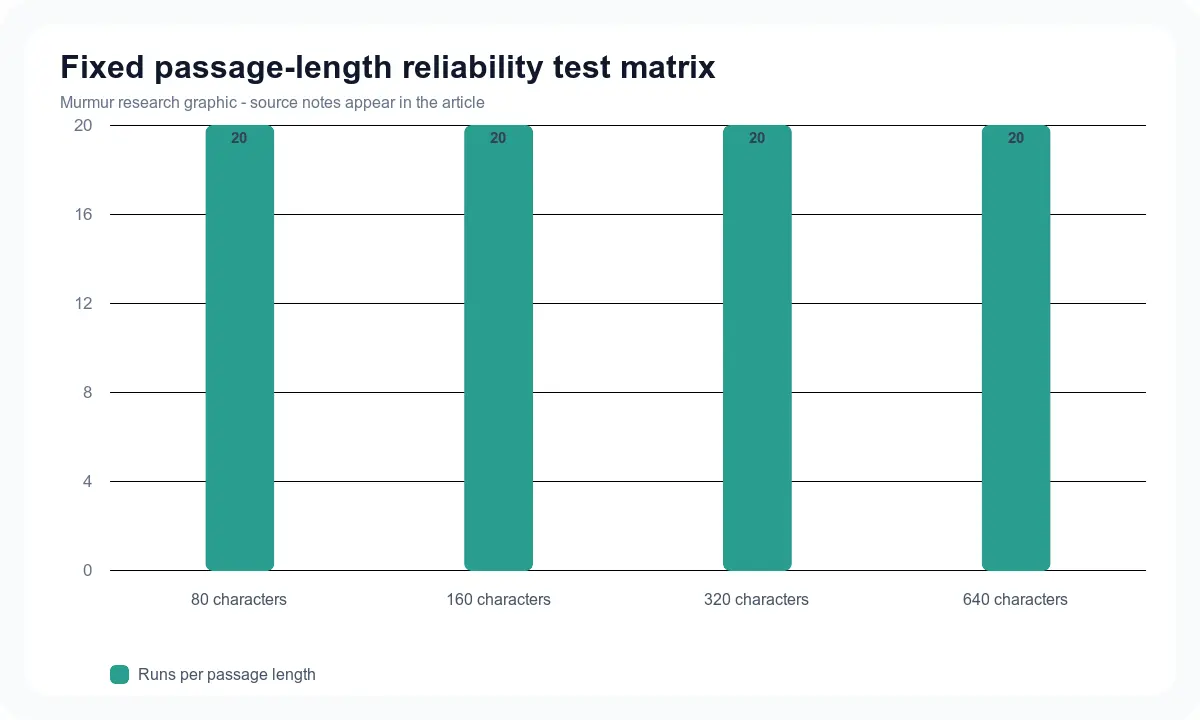
- A difficult fixed script for comparing models
- An export checklist that protects sentence endings
- When to stop tuning and change models
Where text-to-speech words actually disappear
Treat the workflow as four separate stages: source text, normalized text, model output, and final export. A PDF can contain soft hyphens, ligatures, hidden line breaks, or duplicated headers that are invisible in an editor. A normalizer may expand “Dr.” incorrectly, remove symbols, or turn “3.14” into two unrelated fragments. The model may repeat, omit, or continue beyond the prompt. Finally, an editor can cut the last phoneme because an automatic silence remover mistakes a quiet consonant for empty space.
This distinction matters because punctuation cannot repair a damaged input. Before changing commas, copy the exact text sent to the model into a plain-text view. Search for replacement characters, non-breaking spaces, zero-width characters, smart quotes, and line-break hyphenation. If the source came from PDF or EPUB, compare several extracted sentences with the visible page. Murmur users can also start with the blog-to-audio preparation guide before testing the voice.
| Symptom | Likely layer | First test | First fix |
|---|---|---|---|
| Same word always missing | Text normalization or tokenizer | Inspect exact normalized text | Write the token out phonetically or in full |
| Different omissions on each run | Model decoding | Generate three times with identical input | Lower randomness or switch model |
| Failure appears after a long paragraph | Context or chunking | Split at sentence boundaries | Generate shorter chunks |
| Final consonant is clipped | Silence trim or export | Listen to raw WAV | Add tail padding and disable trim |
| Comma has no audible pause | Prosody interpretation | Replace with a sentence break | Insert silence after generation |
| Extra words after the script | Hallucination or continuation | Check raw model output | Use a newer model, shorter chunk, or tighter decoding |
Run this two-minute TTS isolation test
- Export or save the exact text that reaches the model. Do not rely on what the document viewer shows.
- Generate one sentence of 15 to 25 words as lossless WAV. Turn off mastering, silence removal, and timeline effects.
- Listen while reading the source. Mark omissions, substitutions, repetitions, and clipped sounds separately.
- Generate the same sentence three times. A stable error suggests normalization or pronunciation. A changing error suggests sampling.
- Replace numerals, symbols, and abbreviations with spoken forms. Generate again.
- Split the sentence at its strongest punctuation mark. Add 300 milliseconds of silence between the two clips.
- Only after the raw clips pass should you re-enable trim, compression, and final export.
Keep every output. Naming files model-script-version-run.wav turns a vague impression into evidence. A transcript checker can calculate script completeness, but human listening is still required for homophones, swallowed endings, and punctuation. Word error rate is useful for comparing exact content, while a pause measurement shows whether punctuation changed timing. Neither score alone measures whether a voice sounds good.
Fix numbers, abbreviations, symbols, and unusual characters first
Text normalization converts written language into something a speech model can pronounce. “$1,249.50,” “3:05 p.m.,” “v2.1,” “Dr. Meyer,” and “read/read” all require context. A model may handle familiar English patterns but fail when a German abbreviation, URL, code fragment, or mathematical symbol enters the same passage. Hugging Face’s SpeechT5 guide gives a simple example: its tokenizer has no number tokens, so the documentation recommends normalized text with numbers written out. That model-specific limitation is a useful warning for every stack.
- Write measurements as spoken words when precision matters: “twelve point five millimetres.”
- Expand ambiguous abbreviations: “Doctor Meyer,” “Saint John,” or “version two point one.”
- Replace URLs and file paths with a listener-friendly description unless they must be read literally.
- Remove soft hyphens and repair words broken across PDF lines.
- Use one language per chunk when the model requires a single language identifier.
- Keep a pronunciation dictionary for names, brands, acronyms, and fictional terms.
Why AI voice generators ignore punctuation
A comma does not mean “insert exactly 200 milliseconds.” It is one signal among the words, capitalization, training examples, chosen voice, and model controls. Cartesia’s official WebSocket guidance tells developers to include spaces and punctuation because they help its Sonic model produce more accurate speech and prosody. That is guidance, not a universal timing contract. Resemble AI’s Chatterbox issue tracker also shows why invented tags are risky: a literal [PAUSE] can be spoken aloud because the model does not promise that token.
Use normal prose first. If a comma is too weak, try a semicolon or a full sentence boundary. If timing must match video, dialogue, music, or accessibility cues, split the clip and insert measured silence in the editor. This is more reliable than stacking ellipses, repeated commas, or blank lines whose effect can change between models. Save expressive punctuation for meaning. Use the timeline for timing.
| Need | Text-level attempt | Reliable production method |
|---|---|---|
| Small natural breath | Comma or clause break | Accept model interpretation if timing is flexible |
| Clear thought boundary | Period and new sentence | Generate as adjacent sentence chunks |
| Exactly 500 ms pause | Do not depend on punctuation | Insert 500 ms silence on the timeline |
| Emphasis on one word | Rewrite sentence to place contrast naturally | Use model style control or a separate take |
| Pronounce an acronym | Add spaces or a phonetic spelling | Store a project pronunciation override |
Why long passages skip, repeat, or invent words
Many modern TTS systems generate speech tokens autoregressively or with stochastic sampling. Longer generation gives the system more opportunities to drift, repeat, stop early, or continue after the prompt. Model teams are actively treating this as a product metric. The official Chatterbox repository describes Multilingual V3 as reducing unwanted continuation, repetition, and off-prompt speech compared with earlier versions. The official Qwen3-TTS repository reports content consistency with word error rate, which is a better signal for script fidelity than a polished demo alone.
The practical fix is sentence-aware chunking. Start around 100 to 250 characters, keep complete clauses together, and avoid cutting before a name, number, or dependent phrase. Generate each chunk separately, then join it with a small crossfade or room-tone bed. Increase chunk size only after the model completes the fixed test reliably. A long-form tool should retain chunk text, model version, seed or sampling settings, and output file so one failed sentence can be regenerated without rebuilding the chapter.
Protect sentence endings during export
A model can pronounce every word correctly and still sound broken after export. Noise gates, silence removal, crossfades, and clip boundaries often target low-energy regions. Final consonants such as “s,” “f,” and “th” can be quiet enough to trigger an aggressive threshold. Reverb tails and breaths can disappear too. Always compare the raw model WAV with the rendered project file before blaming the voice engine.
- Leave 250 to 500 milliseconds after each generated sentence before trimming.
- Use short equal-power crossfades only where room tone matches.
- Disable automatic silence stripping for the diagnostic export.
- Normalize loudness after joining clips, not before comparing completeness.
- Inspect the waveform and listen on headphones at the last word of every clip.
- Export a WAV master before producing compressed delivery files.
When to change models instead of adding more punctuation
Keep a small regression pack after the first repair. Include the sentence that failed, one number-heavy line, one quotation, one abbreviation, and one line ending in a quiet consonant. Run the pack after an app update, model update, checkpoint change, or export-setting change. A five-line regression check is faster than discovering halfway through a chapter that the new setup consistently drops dates or clips plural endings.
Also separate pronunciation work from completeness work. A dictionary entry can repair a name that sounds wrong, but it should not be used to hide random omissions. Conversely, a shorter chunk may preserve every word while changing the pronunciation of an acronym. Mark the result by error class so a production team knows whether to edit text, regenerate, adjust the timeline, or replace the voice.
Stop tuning when the same clean, normalized, sentence-sized input fails across three runs, or when fixes make one line better and another worse. Test a second model with the identical reference clip and settings disclosure. Voice similarity, naturalness, and script completeness are separate scores. The newest or largest model may not win all three. The local TTS model comparison explains the current model families, while the Murmur voice library provides a faster route to auditioning alternatives.
For a defensible choice, run a blind test. Hide model names, level-match the clips, and ask listeners to mark missing or extra words before rating naturalness. Keep the difficult script unchanged between releases. That prevents a curated demo sentence from hiding the failure that matters to a narrator, course producer, game writer, or audiobook editor.
Frequently asked questions
A reliable fix starts with the failing layer
Do not solve every TTS failure with more punctuation. Verify the exact text, generate one clean sentence, compare three runs, normalize difficult tokens, chunk at sentence boundaries, and protect the tail during export. Then change models when the raw output remains incomplete. This process takes minutes and leaves evidence you can use across an entire production. For a local Mac workflow with reusable scripts, alternate takes, timeline editing, and WAV or M4A export, download Murmur and run the fixed test before committing to a voice.
Sources
- Resemble AI Chatterbox official repositoryAccessed 2026-07-13
- Cartesia TTS WebSocket documentationAccessed 2026-07-13
- Hugging Face SpeechT5 documentationAccessed 2026-07-13
- Qwen3-TTS official repositoryAccessed 2026-07-13
- Community blind TTS benchmark discussionAccessed 2026-07-13
Test and repair local TTS on your Mac
Murmur gives you local model choices, reusable scripts, alternate takes, projects, a timeline, and lossless export for a $49 one-time purchase. There is a free plan and a 3-day Pro trial and purchases have a 7-day refund policy.
macOS 15+ · Apple Silicon required · 7-day refund policy