OmniVoice language
Lushai text to speech for Mac
Create Lushai narration, tutorials, and multilingual voiceovers on your Mac with local generation, OmniVoice support, and a workflow built for Lushai-language creators and teams who want a local Mac voice workflow.
Free plan with Kokoro voices, 3,000 characters a day · 3-day Pro trial, then $49 once
Lushai text to speech in Murmur
Preview real lines, keep drafts local, and export finished audio from the same Mac workflow. A Windows beta is also available.
- Language sample workflow
- OmniVoice language support
- Local Mac generation
- Export-ready audio
01 · Context
Lushai support should mean a production workflow, not just a checkbox
Most Lushai TTS pages stop at "supported." That is not enough when you need to judge voice quality, preview a real paragraph, revise a script, and export audio without watching a usage meter.
Murmur is built for local Mac production. You can test Lushai lines, use OmniVoice for broad language coverage, use cloning where the selected model supports it, and keep private drafts on your machine.
02 · Highlights
Lushai-capable models in Murmur
Choose a model below for Lushai, download it in Murmur, and try a short passage before starting a longer project. Model availability and pronunciation vary by language.
OmniVoice
Murmur's new many-language voice cloning path, backed by OmniVoice's 646-language runtime catalog. For Lushai, Murmur can pass the OmniVoice language hint "lus" or the full language name.
03 · Highlights
Mizo text to speech: pronunciation checks
Before recording a full Lushai script, check the names, places, and spellings your audience will hear.
Aizawl churches record Mizo sermon clips, gospel singers narrate song stories, and village councils share announcements for families across Mizoram and neighbouring districts.
For best results, test Lushai with a complete paragraph, not a one-line greeting. That exposes pacing, punctuation handling, borrowed words, and whether the voice still sounds natural after several sentences.
Mizo tones
Add this to your Lushai test script so you can catch pronunciation issues before producing the final YouTube, course, or training audio.
Long and short vowels
Add this to your Lushai test script so you can catch pronunciation issues before producing the final YouTube, course, or training audio.
English loanwords
Add this to your Lushai test script so you can catch pronunciation issues before producing the final YouTube, course, or training audio.
Ask a fluent Lushai speaker to review the test recording. Revise any mispronounced words, regenerate the affected lines, and listen across the joins before export.
04 · Highlights
What Lushai text to speech works best for
Lushai narration
Use Murmur to turn Lushai scripts into listenable audio for Lushai narration, with local previews and export-ready output on Mac.
Localized videos
Use Murmur to turn Lushai scripts into listenable audio for localized videos, with local previews and export-ready output on Mac.
Training and education audio
Use Murmur to turn Lushai scripts into listenable audio for training and education audio, with local previews and export-ready output on Mac.
05 · Context
How to evaluate Lushai output before publishing
For Lushai, test a real paragraph instead of a generic demo line so pronunciation, rhythm, and pacing match the finished project.
The practical test is simple: paste the exact opening paragraph of your real script, preview it, then listen again as a viewer or learner would. If the pacing works there, the rest of the workflow becomes much easier to trust.
Model stats
OmniVoice model details
Murmur uses OmniVoice for Lushai. Check pronunciation with a fluent speaker before using the output in a finished project.
Hugging Face model cardTraining coverage varies by language. The total dataset size does not tell you how well a particular name, dialect, or sentence will sound.
arXiv paperFor Lushai, start with a short clean reference clip and test the exact script style you plan to publish.
OmniVoice demo siteVideo + visual workflow
Build a stronger Lushai voiceover from real examples
Before publishing Lushai audio, compare Murmur output with native-speaker material, YouTube examples, and your own script goals. The best workflow is to watch a few real Lushai clips, paste a representative paragraph into Murmur, then adjust pacing and wording before export.
Watch Lushai examples on YouTubeUse native-speaker videos as reference material for pacing, names, and phrase rhythm before generating the final voiceover.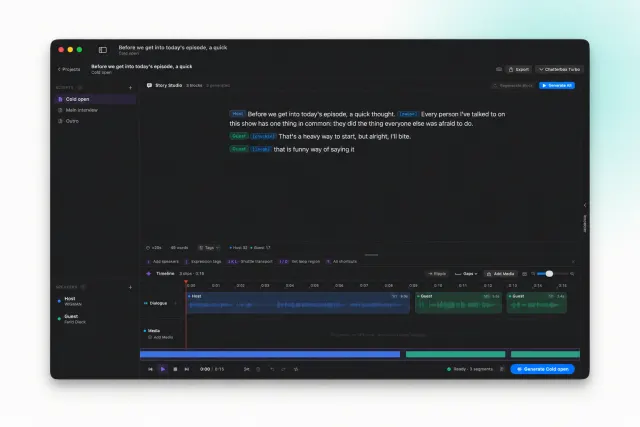
FAQ
Common questions
Yes. Murmur is designed around local generation on your Mac after setup and any required model downloads.
macOS · Local TTS
Create Lushai audio on a workflow you control
If you need Lushai text to speech without turning every draft into a cloud transaction, Murmur gives you a local-first way to generate, review, and export audio.